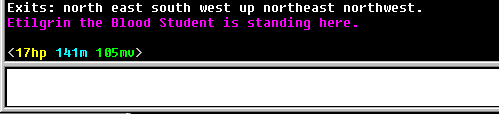
There are times when you might want to automatically highlight words that arrive, for example, the names of your friends. An easy way of doing this is to use the "Highlight Word" feature. Let's suppose you see the name of your friend "Etilgrin" on the screen:
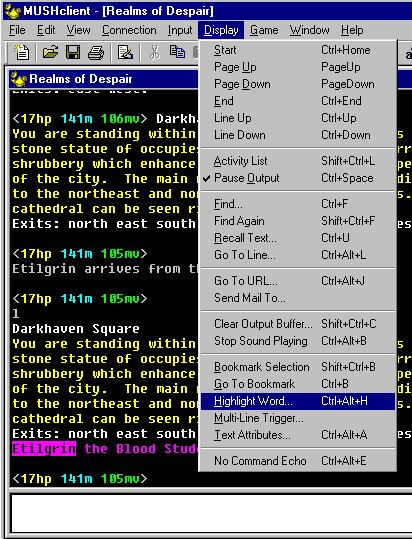
Now to highlight it, we double-click the word "Etilgrin" (to select it), and then choose Highlight Word from the Display menu:
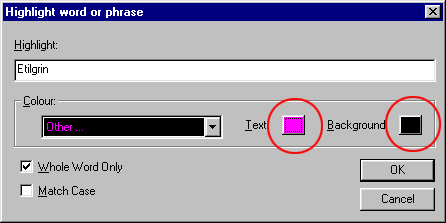
This opens the "Highlight word or phrase" dialog box, with your selected word inserted already, and its current colours shown. If your friend's name was not on the screen already, this would be a good time to type it in. Then you can click on the two colour swatches to change the foreground and background colour that this word will appear in, in future:
By clicking on the colour swatch you open the MUSHclient "colour picker", which gives you lots of options for choosing colours. You can click on the big swatch to open the Windows colour picker, choose one from the list of names on the left, or drag the colour sliders around to modify the colour manually:

When you have finished, you might see something like this:

Click OK to save the changes, and then "look" again to see the name of your friend in its new colours:

What this process has actually done is created a "trigger" - something that matches incoming text. You can press Alt+Enter to open the world configuration dialog, and then see the trigger in the triggers list:

This screen shows the new trigger. It has created a regular expression, as that can be used to colour part of a line. The word you chose is in the "Trigger" box, with \b at each side. The \b tells MUSHclient to only match on a whole word. It has also checked "repeat on same line", in case the same word appears more than once on a line:
